
How to download selected multiple files for a record using LWC component?

 Here is the LWC component, can be added to record page.

Apex Class

public class MultipleFilesDownLoadController {
    @AuraEnabled()
    public static  List<ContentDocumentLink> retriveFiles(String sLinkEntityId) {
        system.debug('sLinkEntityId--'+sLinkEntityId);
       
       List<ContentDocumentLink> listOfDocumentLink = [Select Id,ContentDocument.LatestPublishedVersionId,ContentDocumentId,ContentDocument.Title,ContentDocument.Owner.Name
                                                        FROM ContentDocumentLink
                                                       WHERE LinkedEntityId =:sLinkEntityId];
         system.debug('listOfDocumentLink---'+listOfDocumentLink);
        return  listOfDocumentLink;
    }
}

Component

<template>

    <lightning-card  variant="Narrow"  title="Files" icon-name="standard:file">
         <p slot="actions">
            <lightning-button class="slds-m-right_x-small slds-float_right" 
            variant="brand" label="Download"  onclick={downloadFiles
            icon-name="utility:download" >
            </lightning-button>
        </p> 
        <p class="slds-p-horizontal_small">
            <lightning-datatable data={filesData
                columns={columns
                key-field="id">
            </lightning-datatable>
        </p>    
    </lightning-card>    
</template>

JS Controller 

import { LightningElement,api } from 'lwc';
import retriveFiles from '@salesforce/apex/MultipleFilesDownLoadController.retriveFiles';
import { ShowToastEvent } from 'lightning/platformShowToastEvent';
import { NavigationMixin } from 'lightning/navigation';
const columns = [
    {label: 'Title', fieldName: 'Title'},  
    {label: 'Owner', fieldName: 'Owner'}          
];
export default class MultipleFilesDownLoad extends NavigationMixin (LightningElement) {
     @api recordId;
     @api columns = columns;
      filesData;
     sSelectedId = [];
     
     connectedCallback() {
        console.log('connected===============');
        console.log(this.recordId);
        if(this.recordId){
            retriveFiles({sLinkEntityId: this.recordId})
            .then(res => {
               console.log('intiala files ',JSON.stringify( res ) );
                 let tempRecords = JSON.parse( JSON.stringify( res ) );
                 console.log('tempRecords--',tempRecords);
                    tempRecords = tempRecords.map( row => {
                    return { ...row, Id:row.ContentDocument.LatestPublishedVersionId,Owner: row.ContentDocument.Owner.Name,Title:row.ContentDocument.Title};
                });
                this.filesData = tempRecords;
            }).catch(err => {
                console.log('error', err);
                this.showError(err.body.message);
            });
        }
    }

     showError(msg){
        const evt = new ShowToastEvent({
            title: 'File delete Error',
            message: msg,
            variant: "error"
        });
        this.dispatchEvent(evt);
    }
    

    downloadFiles(){
        var selectedRecords = this.template.querySelector("lightning-datatable").getSelectedRows(); 
        console.log('selectedRecords--'+JSON.stringify(selectedRecords));
        //this.selectedFiles = selectedRecords;
        // this.sSelectedId = ''
        for (const svalue of selectedRecords) {
            console.log(svalue);
            if(this.sSelectedId){
                this.sSelectedId.push(svalue.Id);
            }       
        
        }
        console.log('this.sSelectedId==',this.sSelectedId);
        if(this.sSelectedId.length > 0){
            let filesDownloadUrl = '/sfc/servlet.shepherd/version/download';
            this.sSelectedId.forEach( item => {
                        filesDownloadUrl += '/' + item
             });
            thisNavigationMixin.Navigate ]( {
                        type: 'standard__webPage',
                        attributes: {
                            url: filesDownloadUrl
                        }
                    }, false );
            console.log( 'filesDownloadUrl is', filesDownloadUrl );
            this.dispatchEvent(
                        new ShowToastEvent( {
                            title: 'File(s) Download',
                            message: 'File(s) Download Successfully!!!',
                            variant: 'success'
                        } ),
                    );
        }
    }
}

XML 

<?xml version="1.0"?>
<LightningComponentBundle xmlns="http://soap.sforce.com/2006/04/metadata">
    <apiVersion>57.0</apiVersion>
    <isExposed>true</isExposed>
    <targets>
        <target>lightning__RecordPage</target>
    </targets>
</LightningComponentBundle>

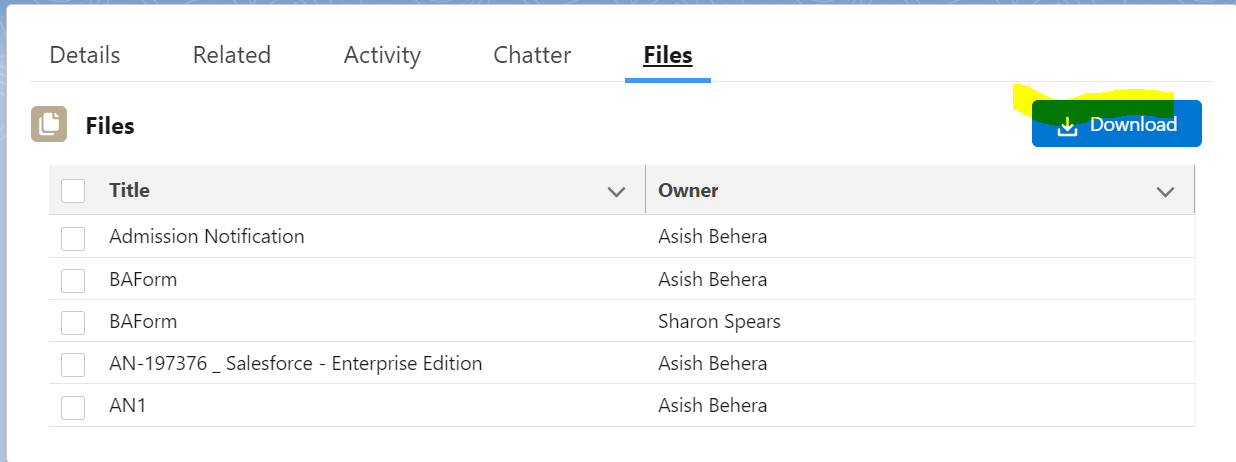
Record Page


Comments

Popular posts from this blog

How to Create a Tooltip in Lightning Datatable ?

Imagine you have a datatable displaying a list of Contact records , and one of the columns shows the Account Name . The Account Name is a hyperlink that allows users to navigate to the Account record page. But what if users want to take a quick glance at some key Account fields —like Phone or Address—without navigating to the Account record? In Salesforce Classic, this was achieved using the Mini Page Layout feature from standard page. However, in Lightning Experience, we can implement a similar feature by adding a tooltip to the data table. Solution Overview: We’ll create a Lightning Web Component (LWC) that: Displays a data table with a clickable Account Name . Provides a tooltip that shows the Account's Phone and Address fields when users hover over the Account Name. Implementation Steps: 1. Data Preparation We need to retrieve the following fields for each Contact and its associated Account: Contact Fields : Name, Phone, Email Account Fields : Name, Phone, Billing Addre...

📆 How to Get the Start and End Date of the Previous Quarter in Apex ?

 When working with Salesforce data, it's often necessary to filter or report on records from a specific quarter . If you're looking to retrieve the start and end dates of the previous quarter based on the current date, here’s a simple and reusable Apex utility you can use. 🔧 Apex Utility Methods Below are two helper methods: getStartDate() — Calculates the start date of the previous quarter . getEndDate() — Calculates the end date of the previous quarter , based on the start date. // Helper method to get the start date of the previous quarter private Date getStartDate () {     Date today = Date . today ();     Integer currentYear = today . year ();     Integer currentMonth = today . month ();     // Determine the first month of the previous quarter     Integer previousQuarterStartMonth = (( currentMonth - 1 ) / 3 ) * 3 + 1 - 3 ;     // Adjust the year if the previous quarter falls in the previ...

How to Create/Delete file attachments(Content Document) through Apex ?

 There are 3 standard salesforce objects to store file attachments. Content Document, ContentDocumentVersion, ContentDocumentLink.  Here is the article to talk about these objects and relationship.  https://www.forcetalks.com/blog/contentdocument-and-contentversion-in-salesforce-an-overview/ ContentDocumentVersion ContentDocumentLink This post is all about how to create/delete content document though Apex. Here is code snippet // Insert Content Version record ContentVersion contentVersionRec = new ContentVersion(Title='filename',PathOnClient ='FileName.pdf',VersionData = bodyBlob,origin = 'H'); INSERT contentVersionRec; // this will insert one record in ContentDocument and ContentVersion , ContentDocument  is parent and  ContentVersion is child record // get contentdocument id contentVersionRec = [SELECT Id, Title, ContentDocumentId FROM ContentVersion WHERE Id = :contentVersionRec .Id LIMIT 1]; // Create Content Document Link record- This will attach ...